
LoveLab API (1.0.0)
API documentation for LoveLab (formerly known as AliveAI) services. For custom integrations or business inquiries, please contact us.
- Authenticate — choose one of the following methods:
- Log in via Member Login. Use the
accessTokenfrom the response as theAuthorizationheader with theBearerprefix. - Log in via API Key. Create an API Key in the Dashboard and use it as the
Authorizationheader with theKeyprefix.
- Log in via Member Login. Use the
- Start a generation — the core endpoints are Create Image Generation and Create Video Generation. Copy the
promptIdfrom the response. - Receive updates — connect to the WebSocket endpoint at
wss://api.lovelab.ai/ws/prompts/{promptId}to receive real-time progress and results.- Optional (development only): Add the
x-aliveai-request-blocking: trueheader to a generation request to receive a synchronous response. The connection stays open until generation is complete and the final result is returned in the response body. For production use, the WebSocket connection is strongly recommended — it provides live previews and status updates without blocking.
- Optional (development only): Add the
We offer enterprise-ready solutions for businesses that want to integrate state-of-the-art AI generation capabilities into their own platforms. Our unified API covers all aspects of AI generation, including image and video creation, character consistency, roleplay chat, and more. Adult content generation is supported, making the API suitable for a wide range of applications.
Our team can work with you to customize the API and services to meet your specific requirements. Contact us to learn how we can help you leverage our AI technology for your business.
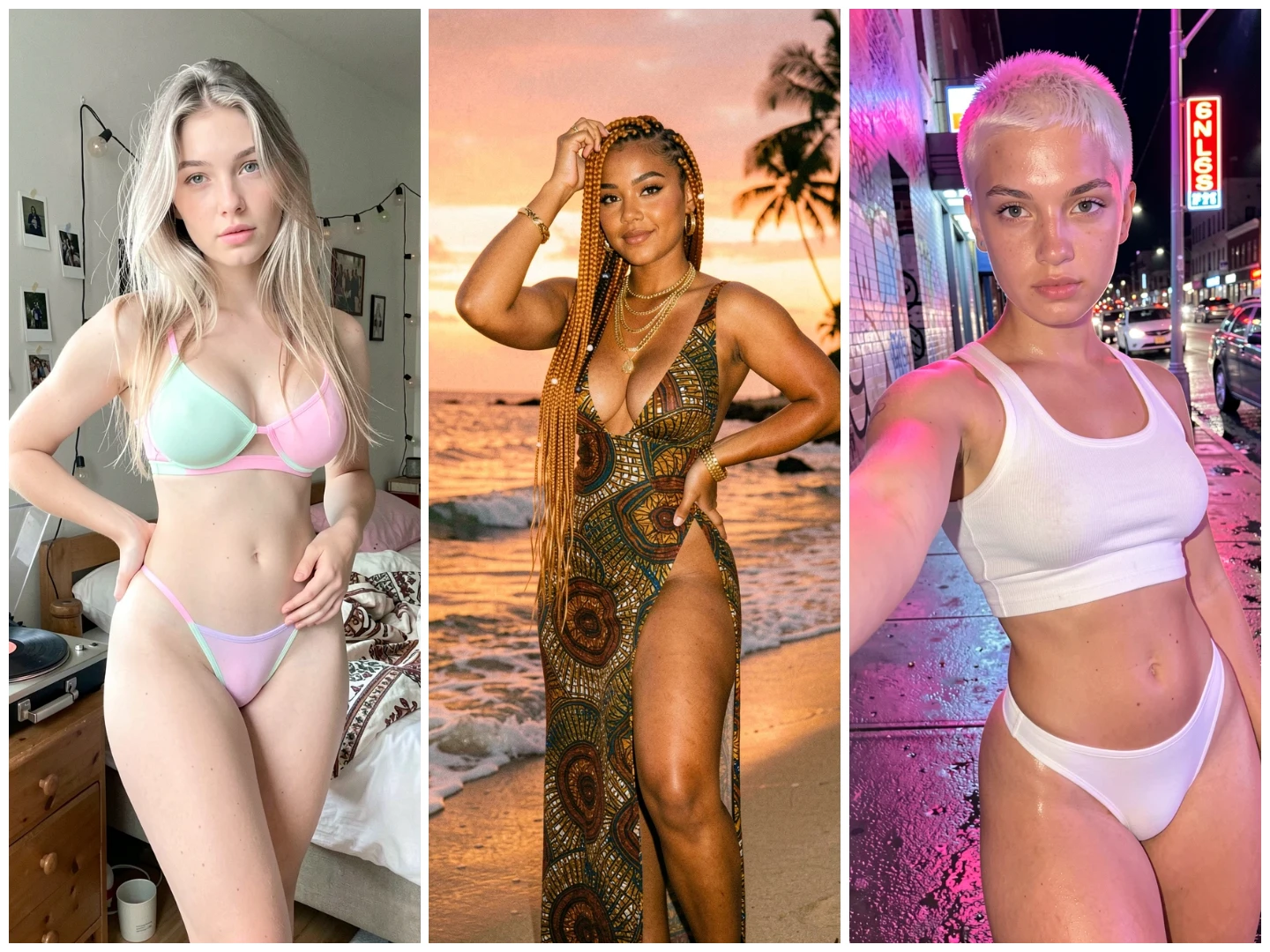
- Generate high-quality images from text prompts.
- Customizable parameters for style, resolution, and more.
- Supported AI models. View Full overview: https://lovelab.ai/ai-model-overview
- Create videos from existing images.
- Includes audio and speech generation capabilities.
- Customizable parameters for style, resolution, and more.
- Supported video models:
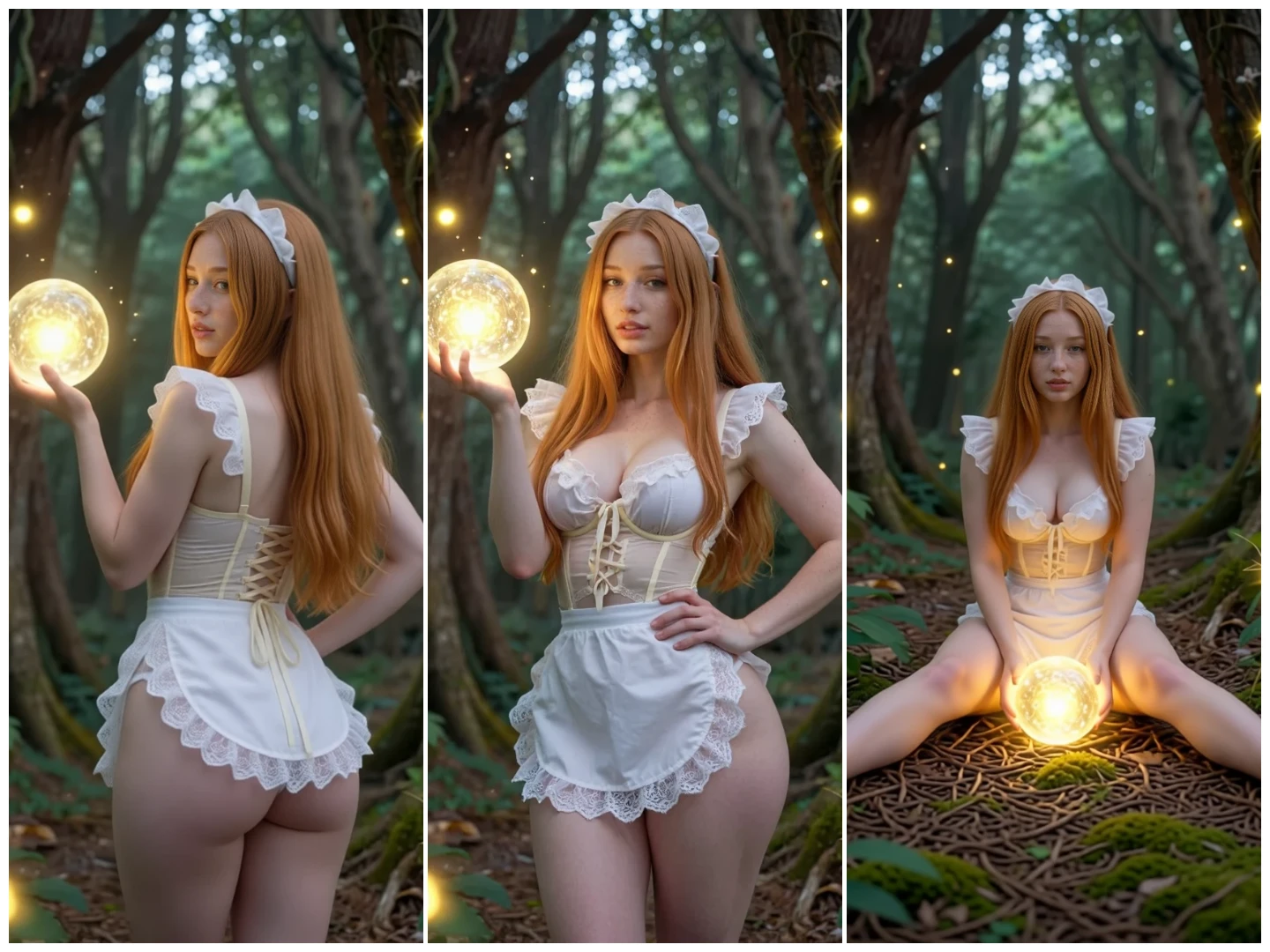
Modify an existing image with a text prompt using the Edit Image Generation endpoint. Pass the source image as the mediaId and describe the change you want — the model preserves the rest of the image while applying your edit.
- Edit faces, bodies, clothing, backgrounds and scenes from a natural-language prompt.
- Keep edits minimal and prompts concise for the most faithful results.
- Choose the model based on the type of edit and content you need.
- Supported edit models:
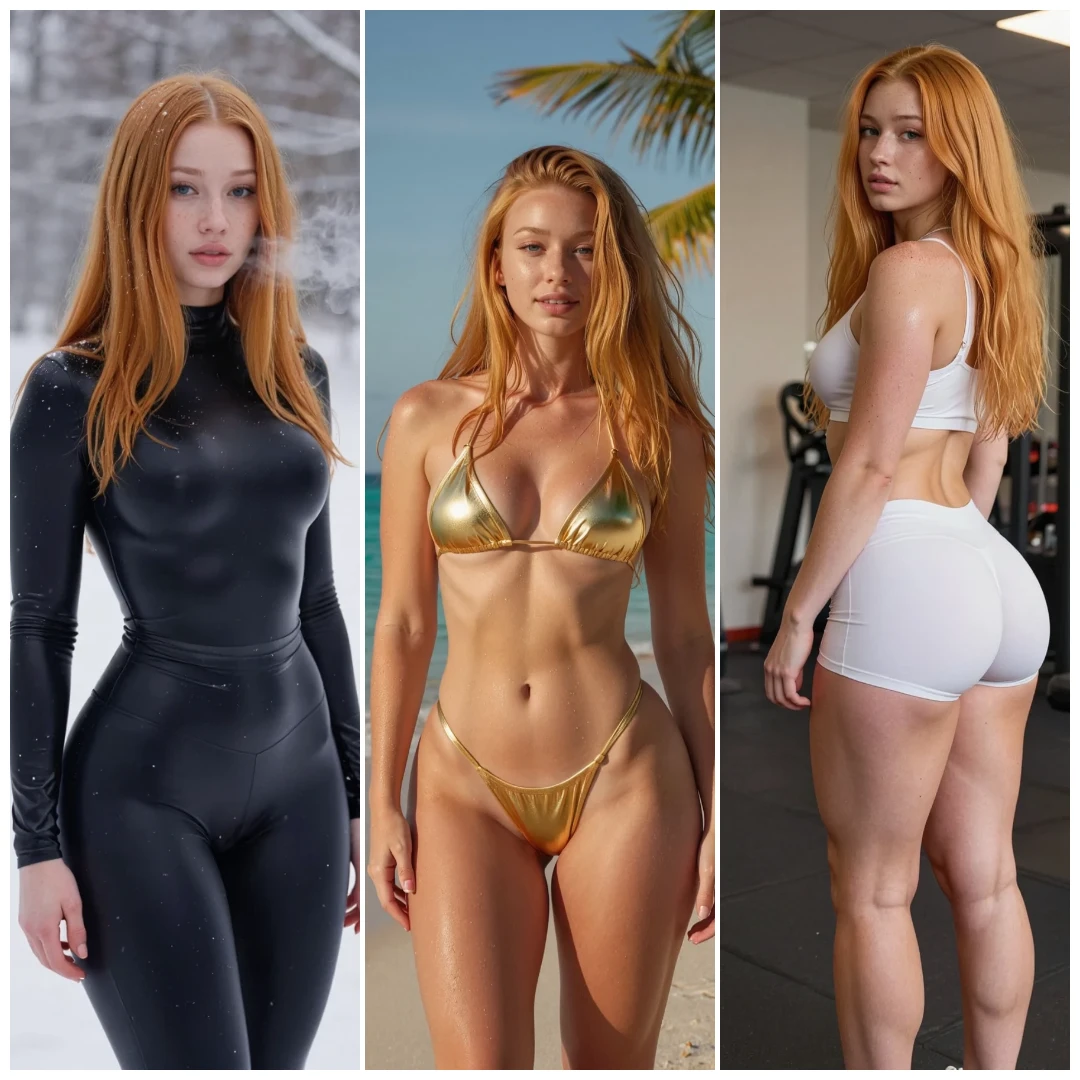
Create and maintain consistent characters across multiple generations. This is ideal for storytelling, marketing campaigns, and any project that requires recurring characters with a consistent appearance and personality.
- Generate a character image using the Create Image Generation endpoint. For best results, use a clear front-facing image with a simple background. Minimal clothing (bikini or nudity) helps the model learn full-body details.
- Use that image as the reference (
mediaId) in the Edit Image Generation endpoint. Start your prompt with something like:extract this person keep her appearance and body shape and same background. <add your prompt here>Choose the AI model based on your desired content type:- For realistic social media content, use the REALISM or QWEN_PRO model.
- For nudity and pornographic content, use the CREATIVE or QWEN_PRO model.
- For specific pornographic content, use a model with a matching Template (LoRA).
- Note: For best results keep the changes minimal and the prompt concise.
Build immersive roleplay and conversational experiences with consistent AI characters. The chat API supports streamed responses, multiple alternative replies, and on-demand image generation that reflects the ongoing conversation.
Chat characters define who the user talks to. Each character has a name, a long-form bio used as system context (personality, background, scenario), a short bio for previews, and a default first message.
- Create or update characters via Create Chat Character and Update Chat Character.
- Generate a character card automatically from an image with Create Character From Image — a vision model analyzes appearance, clothing, and setting to produce the bio fields.
- Attach a generated or uploaded image (
mediaId) to give the character a portrait. Use Consistent Characters to keep that portrait stable across future image generations.
A persona represents the user inside the chat. It carries a display name and an optional bio that is sent to the character as part of the conversation context, so the character knows who they are talking to.
- Manage personas via the Chat Persona Resource.
- One persona can be marked as the default and is reused across new chats.
- Start a chat with Create Chat, supplying a
chatCharacterId, apersonaId, and the user's opening message. - List existing chats with Get Chats and fetch full message history (including all candidates) with Get Chat.
- Delete a chat with Delete Chat.
- Post a user message with Send Chat Message. The response is an NDJSON stream of
ChatStreamEventobjects — one JSON object per line — with the following event types:init— stream metadata, including the new message id.token— incremental text tokens as the character's reply is generated.complete— final message payload once generation finishes.error— terminal error event if generation fails.
- This allows you to render the character's reply progressively, similar to a typing indicator.
Every character message can have multiple alternative replies (candidates), letting users swipe between variations.
- Regenerate the most recent character reply as a new candidate with Regenerate Chat Message.
- Edit the text of a specific candidate via the candidate update endpoint to fine-tune tone or fix details.
- Delete individual messages from the chat history when needed.
Characters can produce images that match the current narrative context.
- Call Create Chat Image to generate a new image of the character based on the recent chat context. The image is appended to the chat as a media message.
- Use Regenerate Chat Image to produce alternative image candidates for an existing media message.
- Image generation reuses the character's reference image, so the visual identity stays consistent across the conversation.